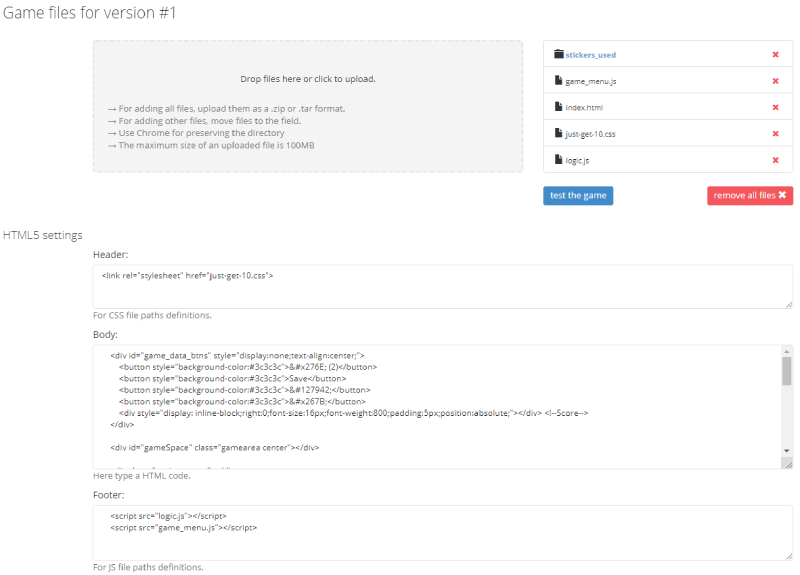
Before you start
Estimated time of SDK implementation: 10 minutes. Please, follow the guide carefully, it will save you from many future problems.
1. SDK configuration
Before a possibility to connect to the SDK, there is need to make a project configuration.
1.1. Create a project
Create new html5 game project in projects section of GameArter system.
This is way you will get your project Id for communication with GameArter SDK.
1.2. Project configuration
Create a configuration for selected project version. You can have up to 5 versions of every project. (Only 1 version can be live, the other 4 serves for development purposes or AB testing).
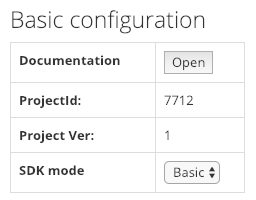
-
1
Documentation
A button opening knowledge base you are currently on. -
2
Project ID
Every game must have its unique project ID. Project ID is a signature of the game with which it accesses, the game has access to GameaArter features. -
3
Project Ver
Selected project version you are configurating -
4
SDK mode
The mode, under which the SDK will run. Select Basic.
Remember you projectId and Project Ver for next steps. Once done, save the basic configuration by pressing "Save configuration"
1.3. Services configuration
Services configuration is for files management, project versions management and adjusting data filled in the project configuration and for adding additinal SDK features in higher modes of GameArter SDK.
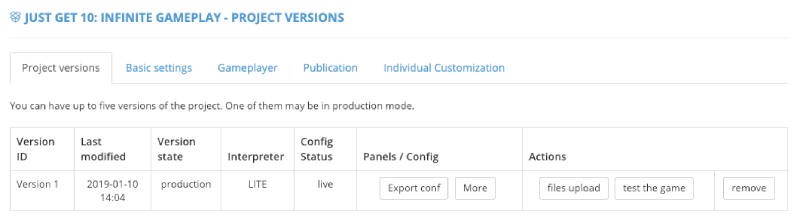
- Rows / Buttons explanation:
- Version ID | project version
- Last modified | Last modification in the version configuration
- Version State | project mode - testnet / production
- Interpreter | interpreter under which the project version runs
- Config status | Status of data state - draft / pending (= waiting for authorization by admins) / live (= approved,in production)
- Export conf buttonn | Opens project configuration (panel 2.2)
- More button | Opens configuraion of additional features
- Files upload button | Opens environment for uploading game files
- Test the game button | Opens game in a new tab
- Remove button | Removes project version
2. Getting started with SDK
At the very beginning, there is need to set basic project configuration.
2.1. Download SDK package
Download latest version of GameArter SDK Unity package from GameArter SDK for Construct section.
2.2. Import GameArter SDK package to the game project
Construct 3
- Open Menu → View → Addon Manager
- Press "Install new addon..." button
- Select downloaded GameArter's addon
- Relaunch / Reload Construct 3
Construct 2
- Unzip downloaded GameArter package for Construct
- Copy folder "gamearter" to "exporters\html5\plugins" folder of Construct 2. Usually "C:\Program Files\Construct 2\exporters\html5\plugins"
- Launch Construct
- Insert GameArter (available in "Platform specific") to requested project by "Insert new Object" option. (available after right mous button click in Layout tab.
Insert GameArter SDK into your project:
- Press right mouse button in Layout scene
- Select "Insert new object option"
- In "Platform Specific section", find and select GameArter SDK. Note, you will find this SDK there only if you do not have it selected in your project yet and you have it added in Construct.

2.3. Fixing possible errors
- Error on load on GameArter domain. Be sure you did not select minify option during game export. Minification made by construct is not compatible with external scripts. Use available tools for post-export minification and obfuscation.
- Any issue found or need a help? Let me know. Email - contact@gamearter.com /
3. Working with SDK
3.1. SDK initialization
GameArter SDK is initialized automatically. Initialization is created on basis of configuration data filled in GameArter object.
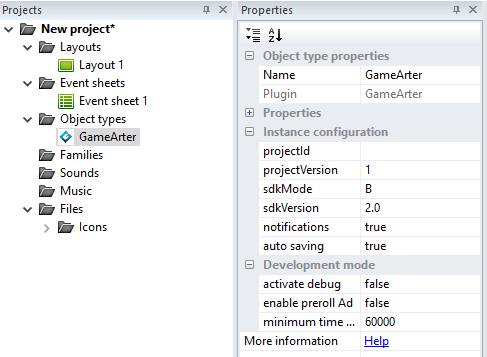
GameArter object Properties
Instance configuration
| projectId | Id of created project in point 1 | [Int] |
|---|---|---|
| projectVersion | Version of created project in point 1 | < 1 - 5 > |
| sdkMode | Selected mode of SDK | "B" (=basic), "L" (=lite), "F" (=Full) |
| sdkVersion | Version of used SDK | 2.0 |
| notifications | Enable SDK-based notifications | true/false |
| auto saving | Enable auto saving | true/false |
Development mode
| activate debug | Activate full printing to console | true/false |
|---|---|---|
| enable preroll Ad | Display preroll Ad on load | true/false |
| Minimum time between ads | Minimum time between 2 displayed ads in miliseconds | [Int] |
3.2 GameArter object Events
| Category | Event | Description |
|---|---|---|
| ADS | On pause game | Is true, when an ad is loaded - Need to mute/pause game |
| On Resume game | Is true, when an ad is completed - Need to unmute / unpause game | |
| Is active ad | Is true, when an ad is being displayed | |
| SDK | On SDK loaded | Is true once GameArter SDK is loaded and all GameArter features available |
| On cutscene completed | Is true when launched cutscene was closed | |
| On Possible game exit | It's called when SDK recognizes risk of escaping the game (e.g. closing page tab). This may be last opportunity to save game porgress. (In progress) | |
| USER | Is logged | Is true, when a user is logged in |
| PWA | Is PWA installation enabled | True, when installation is enabled (button for installation can be displayed). Use for quick check. |
| On PWA installation enabled | Called on PWA installation state change. True, if enabled. (= button for installation can be visible) | |
| On PWA installation success | Called, when the game was succesfully installed to user's device. |
3.3 GameArter object Actions
| Category | Action | Attributes | Description |
|---|---|---|---|
| ADS | Call Ad | - | Request an ad. |
| PWA | Request install as app | - | Install game as app. |
| SDK | AnalyticsEvent | Values - action, category, label, value. ? | Post data to analytics. |
| Redirect | Target url. | Opens new tab. Redirect is tracked and displayed in panel. | |
| Display Cutscene | Cutscene index | Displays cutscene of selected index. | |
| Switch fullscreen | - | Switches between fullscreen / normal window. |
3.4 GameArter object Expressions
| Category | Action | Description |
|---|---|---|
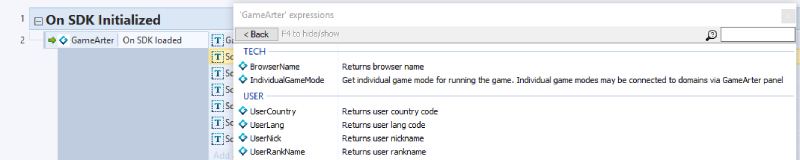
| TECH | BrowserName | Returns browser name. List of Browsers |
| IndividualGameMode | Returns game mode set for current domain. | |
| USER | UserCountry | Returns user country code. List of countries |
| UserLang | Returns user language code. List of languages | |
| UserNick | Returns User nick | |
| UserRankName | Returns user rank name |
Closer explanation
-
Individual Game Mode
There's a possibility you require to run the game in individual game mode on certain website or e.g. for testing. By using individual game mode features, you can set individual mode the game will run in for every website the game is published on. SDK will return you after its initialization number of mode which you will assign to a certain website. Then, you can simply set data with which the game should run according the mode number.
-
Browser name
WebGL games have often different performance in various browsers. With knowledge of a browser a game is running in, there is a possibility for optimization of disabling features for certain browsers. E.g. car destructions for Chrome.
4 Examples
4.1 Sdk Initialization
Requests to GameArter SDK may be caled only after SDK initialization.

4.2 Get user info
Asking for nick-names is very annoying. Instead, nickname should be took from user's profile in GameArter. Similar with language, country and so on. Users should not be requested for any data they already provide. Here's example of available expressions for getting user's nickname, country and language.
4.3 Ads
Available ad types
- Fullscreen midroll ads (= Interstitial ads)
- Rewarded ads (= Fullscreen ads with a reward for watching)
Ad types can be combined in a game (One game can use both types of ads)
Fullscreen ad
Ad rules
- Call ads only in suitable places. Ads cannot affect best user experience (UX) from playing games
- Call ads in any suitable place for ad
- Game sounds MUST be muted during an ad
- Any exhortation or rewards for interacting with ads is prohibited
What is happening after an ad call:
- ad request is received in GameArter Ads manager.
- GameArter Ads manager checks availability of ads and processes ad-frequency-check.
- Ad state is returned by callback function.
Callback states
- loaded = (OnPauseGame) → Midroll ad has been loaded. Game sounts must be muted
- success = (OnResumeGame) Midroll ad has been succesfully completed. unmute sounds
Example implementation:

An alternative implementation through script code
function callInter(runtime){
	GSDK.I.CallAd("midroll",function(adState){
		switch(adState){
			case "loaded":
				// mute game
				runtime.globalVars.isSilent=1; // example through global variable
			break;
			case "completed":
				// unmute game
				if(runtime.globalVars.SoundDisable==1){
					runtime.globalVars.isSilent=1;
				}else{
					runtime.globalVars.isSilent=0;
				}
			break;
			case "ignored":
				// do nothing (it's beacuse the minimum time since the last advertisement has not been reached)
			break;
		}
	});
}
Rewarded ad
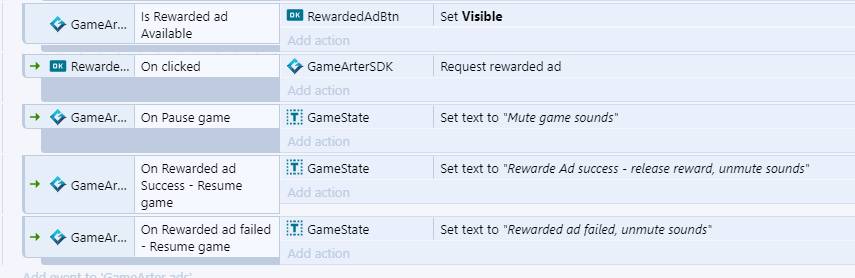
Availability of a rewarded ad is individual based on user's behaviour. Display button / option to launch rewarded ad only if the rewarded ad is available.
Callback states
- loaded = (OnPauseGame) → Rewarded ad has been loaded. Game sounts must be muted
- success = (OnRewardedAdSuccess) Rewarded ad has been succesfully completed. Release reward + unmute sounds
- failed = (OnRewardedAdFailed) something went wrong - user canceled the ad unmute sounds without reward
Button / UI for requesting rewarded ad must be visible only if rewarded ad is available (condition "Is Rewarded ad Available")
Example implementation:
Alternative implementation through script code
Note: We are dealing with an issue in the Construct v350 where an event associated with ad callback state OnPauseGame and OnResumeGame is not being triggered. This is an alternative solution that works for muting and unmuting game sounds during ads.
function callReward(runtime){
	var sound= runtime.globalVars.isSilent;
	// On rewarded ad request from user (e.g. pressing rewarded ad button)
	GSDK.I.CallAd("rewarded",function(adState){
		switch(adState){
			case "loaded":
				// mute game
				runtime.globalVars.isSilent=1; // example through global variable
				break;
			case "completed":
				// release reward
				// unmute game
				if(runtime.globalVars.SoundDisable==1){
					runtime.globalVars.isSilent=1;
				}else{
					runtime.globalVars.isSilent=0;
				}
				break;
			case "failed":
				// unmute game
				if(runtime.globalVars.SoundDisable==1){
					runtime.globalVars.isSilent=1;
				}else{
					runtime.globalVars.isSilent=0;
				}
				break;
		}
	});
}
4.4 Analytics
You can use any tool for tracking you want. Do not you know any? Here's example of few of them.
By default, GameArter has implemented and supports Google Analytics for websites with a bridge of caching game-side data events. All you need to do to activate it, is to insert your own Google Analytics tracking id to "Basic settings" tab of your project. This analytics tracks all gameplayer-based data as players, source of visits, time of playing and so on. These data can be extended by data in a form of events sent from a game, see Google analytics guide page. Some basic events as scene change and so on can be send to analytics automatically on basis of analytics configuration.
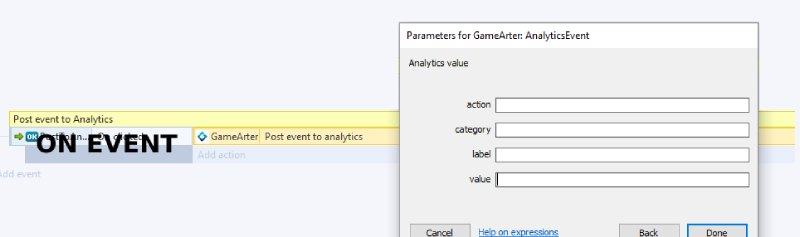
For more info related analytics events, see Google Analytics Events documentation.
4.5 Fullscreen
Because of other services around a game, fullscreen mode must be called over GameArterSDK. Attach following call to fullscreen button in your game (if your game has such button). If a game is already in fullscreen mode, fullscreen is cancelled by the call.

4.6 Redirects
-
Tracking redirects
With our solution you will know about every made redirect. - From what logo, on what website, and how oftenly is being used.

4.7 Cutscenes module
Every game contains many data-weight cutscenes, stories and animations which are displayed calmly only one time for the whole game. GSDK helps to reduce game filesizes by providing a story module — an option for downloading these stories from external storage only in a time when it’s required. Dynamic loading of game stories might be done via asset bundles or this SDK feature when the story is displayed in gameplayer above the game (like an ad).
-
1) Calling browser stories
Be sure that animation of such number is available for your game.
-
2) Callback functions
There is a callback state - "not found","loaded", progress states and "completed".

- 3) Setting / switching of stories
Is being made in "More" section of configuration of the project

4.8 Game as App
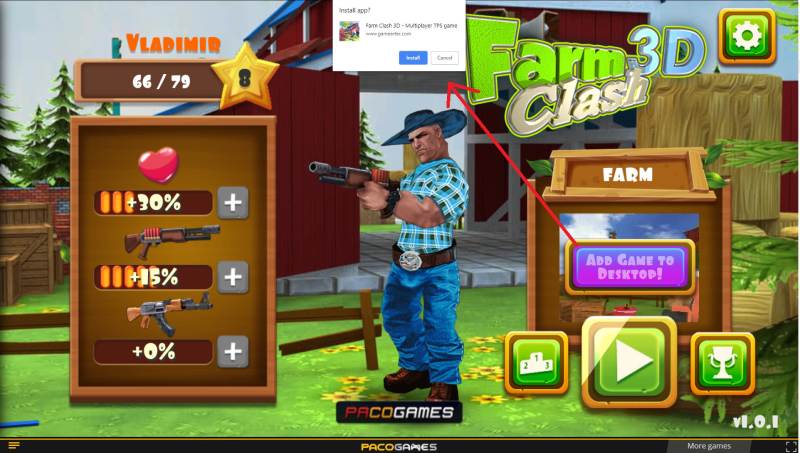
GameArter SDK allows to installation of web games as Web Apps to user's device. Installation is possible to PC as well as mobile device. This feature is available for games running directly at GameArter (not within an iframe).
Implementation
- NOTE: this feature is functional after submiting requests for publishing in GameArter.
- Icon of web app (displayed at user's screen of desktop / mobile) must be in .png format and in 2 dimensions - 192x192 & 512x512px. Name them "favicon-192.png" and "favicon-512.png" and attach to folder "_pwa". Upload this folder with other project files in "Files upload" section at GameArter panel.
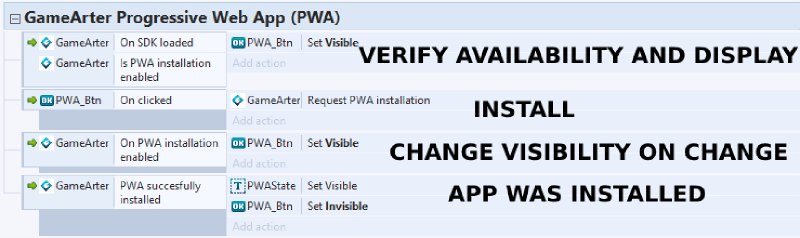
NOTE: Button "Install game as app" must be hidden in default.
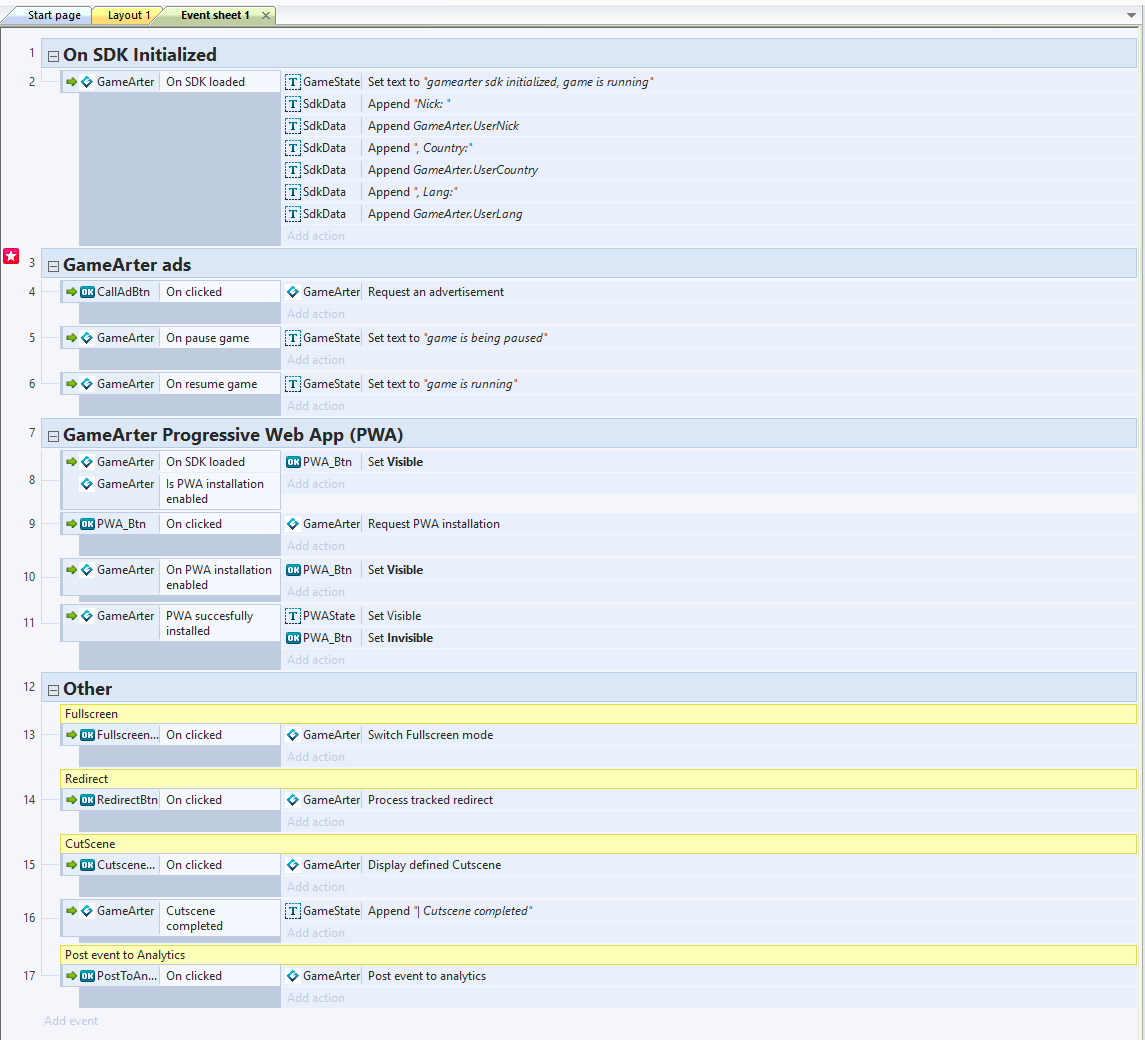
4.9 Full event sheet example